Integration Builder
What Integration Builder is
Integration Builder is Tulip’s own integration platform. It connects Tulip to the systems you already run — without a separate middleware product, and without integration code for you to host. Integrations are assembled in a visual builder rather than written as code.
You tell it three things: when to run, where to get the data, and what shape Tulip expects it in. From then on it runs on its own, in either direction — pulling customers, products, prices, stock and orders into Tulip, and sending what happens in store back to your systems of record.
It is deliberately not a fixed connector. Retail data rarely lines up neatly between two systems, so rather than forcing your data into a prescribed structure, Integration Builder adapts to the structure you already have.
Integration Builder is switched on per Tulip environment. If you do not have access to it, ask your Tulip contact to enable it.
How a workflow is put together
A workflow is one integration. It has a trigger that starts it, then a chain of steps. Each step takes the previous step’s output as its input, so data is progressively fetched, reshaped, checked and loaded. Loops are the one exception, and are covered under Current limits.
A typical inbound workflow:
- Schedule — every hour
- HTTP Request — fetch the changed records from your system
- Transformer — reshape them into Tulip’s format
- Validator — reject anything incomplete before it lands
- HTTP Request — load the results into Tulip
Steps run in order, and each one can be tested on its own before the workflow is switched on. A workflow stays in Draft until you enable it, and can be disabled later without losing its configuration.
Triggers — when a workflow runs
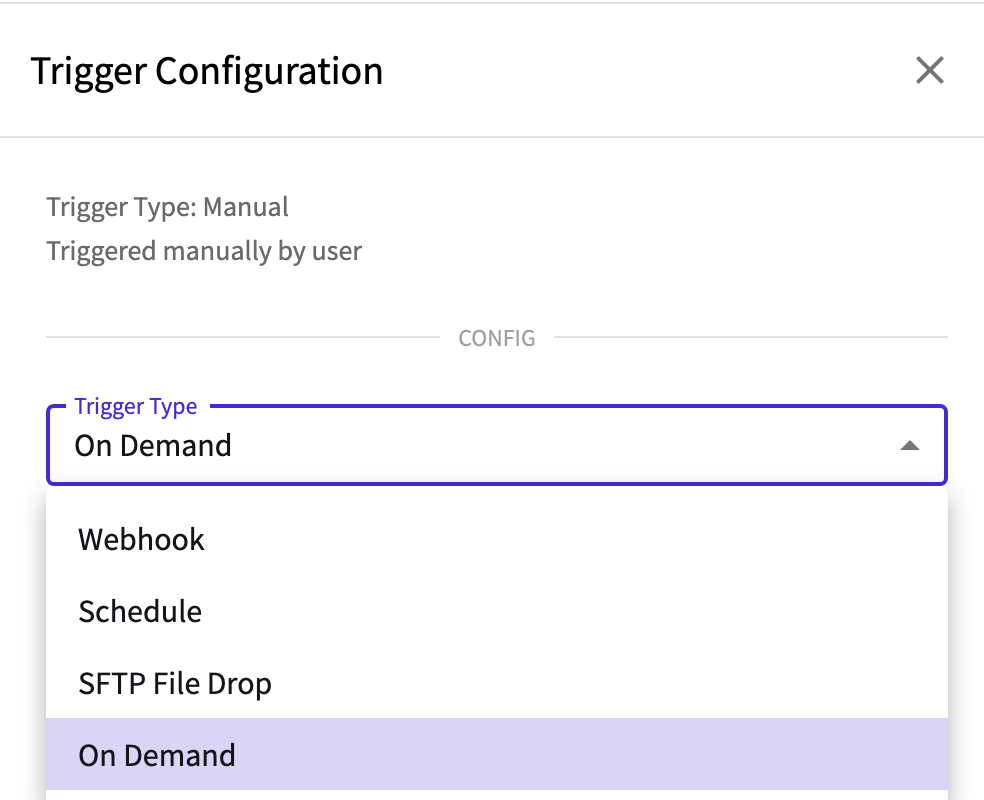
| Trigger | What starts the run |
|---|---|
| Schedule | A recurring schedule — choose a preset such as hourly or daily, or enter your own cron expression. Very frequent schedules are floored to a minimum interval unless the workflow has been enabled for high frequency |
| Webhook | An event in Tulip. The available events cover customers, orders, customer notes, tasks, and import or extension failures |
| SFTP File Drop | A file arriving on a saved SFTP connection, matched by a file pattern (* and ? wildcards, or blank for every file) |
| On Demand | A manual run from the workflow page, or a direct API call from an external system |
Starting a workflow from your own systems
A webhook-triggered workflow also exposes a Run URL. Any system that can make an authenticated web request can start the workflow by posting to it, and whatever it posts becomes the first step’s input. That covers the common case where your source system can announce a change but knows nothing about Tulip.
Two practical notes:
- The call is authenticated with a Tulip API key as a bearer token. The URL itself is not secret; the key is.
- Send an
Idempotency-Keyheader and a retry from the calling system will not be processed twice.
Some platforms — Shopify and Stripe among them — sign their native webhooks but cannot add an authorization header. Call the Run URL from an automation on that platform, or a small relay, rather than wiring the native webhook to it directly.
Both Webhook and On Demand workflows can be started this way, so pick between them on what else should start the workflow: choose Webhook when a Tulip event should also run it, and On Demand when nothing inside Tulip should — only your systems, or a person.
Waiting for a result
Workflows normally run in the background: the caller gets an acknowledgement, and the work happens after. A workflow can instead be set to run synchronously, so the caller waits and receives a chosen step’s output directly. Synchronous runs are bounded by a timeout you set, up to 60 seconds, so they suit a lookup or a quick transformation rather than a bulk load.
Steps — what a workflow can do
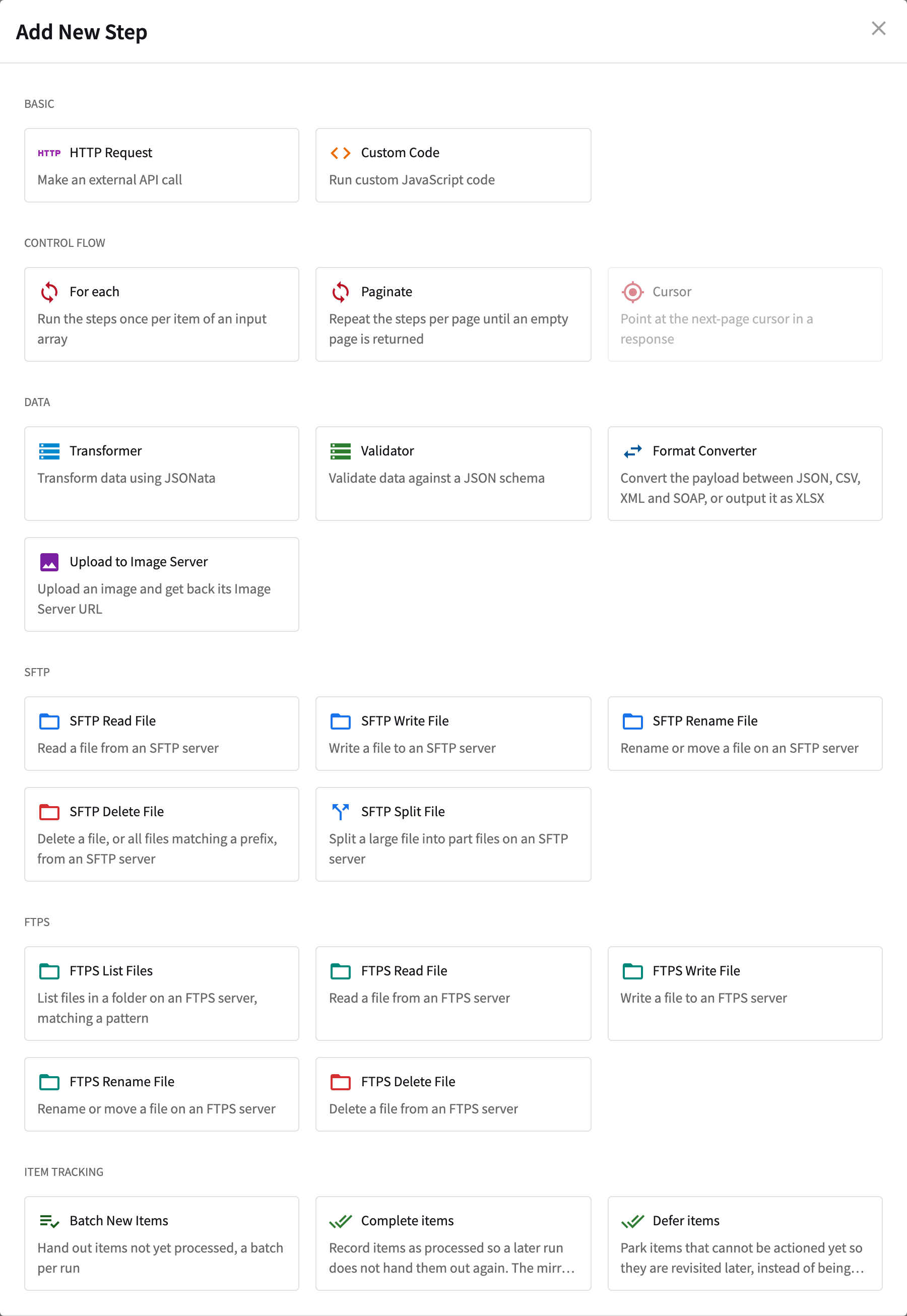
Steps are added from a panel, grouped exactly as they are listed below.
Basic
| Step | What it does |
|---|---|
| HTTP Request | Make an external API call |
| Custom Code | Run custom JavaScript code |
Control flow
| Step | What it does |
|---|---|
| For each | Run the steps once per item of an input array |
| Paginate | Repeat the steps per page until the source has no more to give. Offset and cursor pagination are both supported |
| Cursor | For cursor-based pagination, take the next page’s cursor out of a response and hand it to the loop’s next run |
Data
| Step | What it does |
|---|---|
| Transformer | Transform data using JSONata |
| Validator | Validate data against a JSON schema |
| Format Converter | Convert the payload between JSON, CSV, XML and SOAP, or output it as XLSX |
| Upload to Image Server | Upload an image and get back its Image Server URL |
SFTP
| Step | What it does |
|---|---|
| SFTP Read File | Read a file from an SFTP server |
| SFTP Write File | Write a file to an SFTP server |
| SFTP Rename File | Rename or move a file on an SFTP server |
| SFTP Delete File | Delete a file, or all files matching a prefix, from an SFTP server |
| SFTP Split File | Split a large file into part files on an SFTP server |
FTPS
| Step | What it does |
|---|---|
| FTPS List Files | List files in a folder on an FTPS server, matching a pattern |
| FTPS Read File | Read a file from an FTPS server |
| FTPS Write File | Write a file to an FTPS server |
| FTPS Rename File | Rename or move a file on an FTPS server |
| FTPS Delete File | Delete a file from an FTPS server |
The file steps run against a saved SFTP or FTPS connection, so the server address and its credentials are set up once and then chosen by name.
Item tracking
| Step | What it does |
|---|---|
| Batch New Items | Hand out items not yet processed, a batch per run |
| Complete items | Record items as processed so a later run does not hand them out again |
| Defer items | Park items that cannot be actioned yet so they are revisited later, instead of being abandoned or retried on every run |
Item tracking is what lets a workflow work through a large backlog across many runs without losing its place, repeating itself, or giving up on a record that simply was not ready yet.
Transformers and validators can be written inline or selected from the saved ones already in your Tulip environment, so a mapping written for a file import or a separate workflow can be reused rather than rebuilt.
Referring to earlier values
Anywhere you configure a value — a URL, a header, a request body — you can refer to data rather than typing it. Some examples include {{input.fieldName}} for a field from the previous step, and {{secrets.SECRET_NAME}} for a stored credential.
Mapping your data with AI
Mapping is usually the slowest part of an integration: someone has to work out that your customer_ref is Tulip’s externalId, and write that out field by field.
The AI Transformer Generator does the first draft. You give it the shape of your data and the shape Tulip expects, and it writes the mapping rules.
Describe each side whichever way you already have it — paste a JSON sample, upload a CSV and it reads the columns, or choose a Tulip Model so you never have to look up Tulip’s own shape. For the incoming side you can also point it at a Live API: it calls the endpoint for you, shows the response, and works out the structure from what comes back.
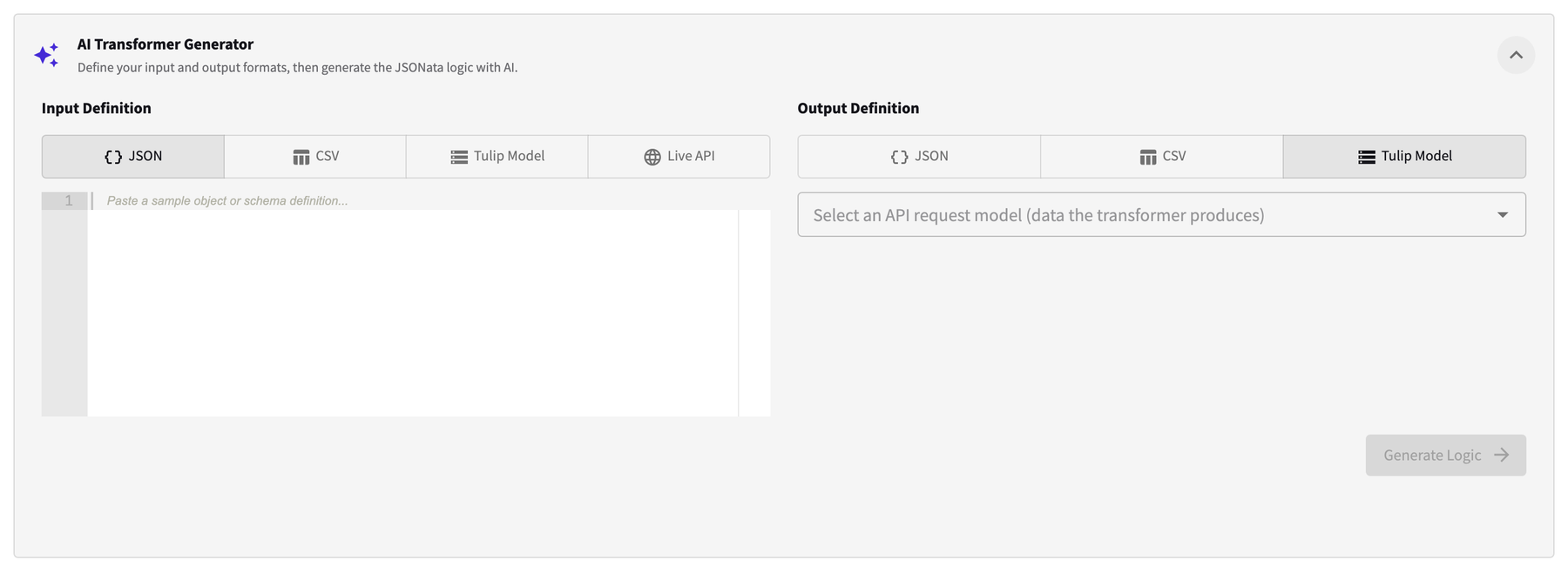
It then generates the mapping and lets you refine it by describing the change you want instead of editing rules by hand. Nothing is applied until you accept it, and you can test it against real data in the same screen. Mappings are saved and reusable, so one customer mapping can serve every feed carrying customers.
Working with APIs and data platforms
Anything reachable over HTTP is reachable from a workflow — your own APIs, a vendor’s API, or a cloud data platform such as Snowflake, Databricks or BigQuery through the platform’s own API. When data is easier to export to a file than to query directly, the scheduled file route works just as well: export on your side, drop the file in the configured location, and have the triggered workflow collect it to process.
Credentials and security
Tulip’s outbound network is closed by default. Every hostname a workflow calls must be on your environment’s allowlist first — a self-serve setting, and the builder offers to add a host for you when you first point a step at it. Wildcards such as *.example.com are accepted.
Credentials are never written into a workflow. They live in an encrypted secrets store and are referenced by name, so a workflow can be viewed, edited and shared without exposing them. SFTP servers work the same way: saved once as named connections, with credentials resolved when the workflow runs.
Together these mean a workflow can only reach systems you have approved, using credentials only the platform can read.
Sending data back out
Everything above works in reverse. A workflow triggered by a Tulip event — a customer captured in store, a sale completed, a note added — can reshape that record into your system’s format and post it wherever it belongs. The same mapping and validation steps apply in both directions, so your systems of record stay the systems of record.
Testing before you turn it on
- Test Step runs a single step on its own, against the previous step’s output or an input you type, and shows the result inline. You can walk a workflow through end to end this way before it has ever run for real.
- Test Run runs the whole workflow immediately, without waiting for its trigger, against a starting input you supply. Each step reports its status as it completes, and loop iterations are listed individually rather than as one opaque entry.
A test run makes real calls, including writes to external systems. Point it at a test environment before pointing it at a production one.
Monitoring a running workflow
Run History lists every run (newest first), and every step within a run, with loop iterations broken out individually. Selecting a step opens three views:
- Step Details — the data that went in, the data that came out, and the error if there was one
- Console Logs — anything a Custom Code step logged as it ran
- HTTP Logs — outbound calls in full, with request, response and timing, which is usually enough to settle whether a problem is on Tulip’s side or the other system’s
A failed step is something you read, not something you have to reproduce. Console and HTTP capture can be switched off for an environment; where they are, the view says so.
Retries are configured per HTTP Request step, with a fixed or increasing delay between attempts. They are off by default, so set them on any step that calls a system which might briefly be unavailable.
Current limits
Worth knowing before you design around them:
- No branching. A workflow is a straight line plus loops — there is no if/else or try/catch yet.
- No shared variables. Each step’s output is the next step’s input; there is no scope spanning the whole workflow. To carry a value past a step, use the HTTP Request step’s option to keep its input alongside its response.
- Loops nest two levels deep and run one item at a time. Each carries a safety cap you set — a maximum number of iterations, or of pages for a paginated loop — and a step placed after a loop receives a report of the iterations, not the results the loop body produced.
- A failed step stops the run. There is no replay of a failed run from where it stopped.
- Workflows have no version history — editing one overwrites its current configuration.
Who builds and runs it
Integration Builder is self-serve, and your team can build in it directly. In practice, most retailers let Tulip’s delivery team build the workflows and mappings during onboarding and keep them running afterwards — you provide API access or a file drop, someone who knows the data to confirm the mapping is right, and a round of testing before go-live. Either way, the workflows, run history and logs belong to your environment and are visible to you.
Integration Builder and Data Bridge
Transformers and validators built in a workflow are the same objects described in Data Bridge — so a mapping is written once and used wherever it is needed, whether that is a workflow step, an API call or a file import.
Some screens still carry the earlier name for this product, Workflow Builder. It is the same thing.
Related
- Planning Your Integration — what data Tulip needs, and in what order
- Data Bridge — mapping and validation in depth, with JSONata examples
- Core API — the endpoints a workflow reads from and writes to
- Events Overview — the Tulip events that can trigger a workflow